Showing posts with label Unity 4. Show all posts

Friday, February 13, 2015

On Sale Now: ACES Display Boards - A Live In-World Customization Toolkit for your Jibe Multiuser Virtual World

Need a powerful system that allows you to easily change in-world surface images/textures, make live modifications, and add customized web-links within your Unity-based Jibe multiuser virtual world? 


This beautiful 3d store model is made up of many high quality 2d surface images/textures,
and I could modify any of them with ACES.

Use the in-world menu system to change surface textures and weblinks.

I just changed the junk food aisle into one containing healthy fruit using ACES!

Everything looks better with Wiener Dogs.


Take care,
Chief Learning Officer, ReactionGrid

Wednesday, May 29, 2013

How to create multiuser networked events in Jibe and Unity3d using iTween

In Jibe 2.0 we've included an easy system that gives you the power to use iTween to create multiuser networked events.  This allows you create shared experiences between avatars using interactive and complex object animations.

Watch my tutorial to learn more!


Video: How to create multiuser networked events in Jibe and Unity3d using iTween


Take care,
-John "Pathfinder" Lester
Chief Learning Officer

ReactionGrid, Inc.

Monday, April 29, 2013

How to create Avatar Sit locations on any object in a Jibe world in Unity3d


Here's a short tutorial video that will show you how to create avatar sit locations on any object in your Jibe world.  It's a very powerful and flexible system where you simply drag and drop sit locations onto anything in your multiuser Jibe world, allowing you to easily create collaborative meeting environments that encourage avatars to gather together in groups.
In this video, I also review how to avoid the accidental misuse of a script that could potentially cause your Avatar to fall through the floor.  Safety First!


Creating Sit Locations in Jibe and Unity3d from John Lester on Vimeo.

Take care,
-John "Pathfinder" Lester
Chief Learning Officer, ReactionGrid

Monday, April 8, 2013

How to embed and play a movie on an object in Unity3d and Jibe


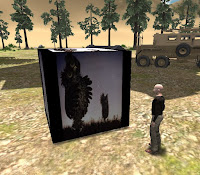
Watching "Hedgehog in the Fog"
in my Jibe world.

Note: You'll need the Unity Pro editor if you want to work with Movie Textures in Unity3d.
Unity3d allows you to embed and play videos on any surface in a 3d environment.
This means you can easily create a web-based Jibe world where avatars explore a multiuser 3d virtual space while watching videos or movies playing on screens/signs/any surface you wish.
The most common way to add video to a Unity3d project is by adding a video file to your project's Asset Folder, which automatically creates a Movie Texture (details here).
However, adding a video file directly to your project means the size of the video file will be added to the final size of your completed Unity webplayer file.  In other words, if your video clip is 50 Megabytes large, then your Unity webplayer file will have an extra 50 Megabytes added on to it.
For folks creating Jibe worlds with Unity3d (or anyone creating Unity webplayer files for streaming on the Web) this is not good.  You always want your webplayer file to be as small as possible so your webplayer file will finish downloading and start running as quickly as possible.
Fortunately, there's a way you can download/stream a movie from the Web so it doesn't add to the size of your Unity webplayer file.  Unity will immediately start playing the movie as soon as it has buffered enough of it, similar to how YouTube works.
Here's a simple example:
Step 1: Get your video ready as an OGG file on the Web

Unity needs videos to be in OGG format (file extension .ogg).  If you need to convert an existing video file into OGG format, I suggest using VLC (it's free and cross platform).  Take your OGG video, put it on a webserver somewhere and remember the URL.

Important Note: If you're managing your own webserver, be sure it has the MIME type for Ogg Vorbis enabled.  For Extension use .ogg, and for MIME type use application/ogg.
Here's a sample 60 Megabyte OGG video I made and uploaded to Wordpress.  Feel free to use this URL in your own tests.  You can also click on it to see how it plays in your browser.
http://becunningandfulloftricks.files.wordpress.com/2013/04/hedgehog_in_the_fog.ogg
Step 2: Create a Cube


In this example, we're going to make a basic cube and have the video play on its surface.  Of course you could flatten the cube so it looks likes a screen and then place it on a model of a TV or something.  I'm just being lazy.

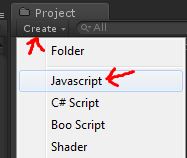
Step 3: Create a new Javascript


I like the name of a script to remind me what the script actually does, so I'm going to call this new script ClicktoPlayWebMovie.


Here's the code.  Copy and paste this into your new script and save it.


var url = "http://becunningandfulloftricks.files.wordpress.com/2013/04/hedgehog_in_the_fog.ogg";
function OnMouseDown () {
 // Start download
 var www = new WWW(url);
// Make sure the movie is ready to start before we start playing
 var movieTexture = www.movie;
 while (!movieTexture.isReadyToPlay)
 yield;
// Initialize texture to be 1:1 resolution
 renderer.material.mainTexture = movieTexture;
// Assign clip to audio source
 // Sync playback with audio
 audio.clip = movieTexture.audioClip;
// Play both movie & sound
 movieTexture.Play();
 audio.Play();
}
// Make sure we have audio source
@script RequireComponent (AudioSource)
function Update () {
}
You can see at the top of the script that I've included my demo URL as the default movie URL.  You can always change it later.
Step 4: Add ClicktoPlayWebMovie script to your cube


Drag the ClicktoPlayWebMovie script from your Project folder onto the Cube in your Scene view.  This will add the script to the cube.


Now select your Cube in the Scene view and look at the Inspector settings.  You can change the movie URL by simply editing the URL field in the Inspector.
Also notice that there is an Audio Source added to the Cube.  This was added automatically when you added the script to the Cube, since the script needs an Audio Source component to work.  Don't delete or modify the Audio Source component.  Just leave it be.


Step 5: You're done.  Test it out!


You can run your Jibe world locally in the Unity editor and test it out that way.  Walk up to the cube and click on it.  The movie will start playing on all surfaces of  the cube.


Enjoy!
-John "Pathfinder" Lester
Chief Learning Officer, ReactionGrid Inc.

Tuesday, April 2, 2013

How to Fix the Unity Asset Server error "Cannot Start Service" on Windows

The Unity Asset Server is a fantastic tool for version control and collaborating with a group of people on a project in Unity3D.  Our customers primarily use Windows servers, and some of them are running their own Unity Asset Servers to facilitate working together on Jibe projects.

We just learned of a bug that might affect folks running their own Unity Asset Server on Windows.  Fortunately it's not serious at all (just annoying as heck), and the fix is incredibly easy and permanent.  

Are you running the Unity Asset Server on a Windows machine?

Has it suddenly stopped working, refusing to start no matter what you do?

Do you immediately see the following popup error when using the Unity Asset Server Control Panel?


Wednesday, January 30, 2013

ReactionGrid Inc: Growth and Change in 2013

Growth and Change always happen together. For something to evolve and flourish, it must grow.

And you cannot have growth without change.

ReactionGrid Inc. is growing and changing. Over the past year you've seen us shift away from Opensim to focus on developing our own proprietary web and mobile-based Jibe platform. You've also seen us evolve into a production studio that provides custom development services for educational 3d simulations using Jibe and Unity3d.

In 2013, you will see us continue to grow. We're working to expand our in-house videogame and instructional design expertise so our team can create the highest quality custom learning simulations. We're enhancing many of Jibe's core features to make it the most compelling multiuser 3d simulation environment out there, with the ability to coordinate complex data flow between virtual and physical world devices. And we are starting some major new projects with clients who are exploring amazing opportunities in the areas of immersive education and deeply engaging learning.

Along with all this change comes changes in leadership. Chris Hart has left her position as CTO to pursue her own ventures in data visualization, and she has handed over her lead developer role to Matthew Bertrand. Matt's been working with ReactionGrid for several months now, and we're very excited for him to take on this new challenge. Chris will remain an active contributor on the Jibe Unity Google Group in case anyone wants to pick her brains about all things Jibe.

At the helm of ReactionGrid, we're very excited to have Robin Donnelly now leading the company as President and COO. Robin's years of management and business development experience will be a great asset during this new phase of ReactionGrid's evolution. And lastly, Kyle Gomboy has left ReactionGrid to pursue his own projects. We wish him the best of luck.

We've got a great core team moving forward (see our updated About Us page), and we'll be continuing to expand our expertise while exploring how to integrate virtual worlds with some fascinating emerging technologies.

Keep an eye on this blog. We plan to surprise you in many wonderful new ways.

-The ReactionGrid Team


Thursday, November 15, 2012

Jibe 1.5 and Unity 4

Over the past months we've been busy working on several development projects for clients, and in each project we have had the chance to expand on our Jibe platform. The upcoming release of Jibe 1.5 will incorporate many of the features we have developed, and we will be ensuring that the release will be 100% compatible with the newly released Unity 4 editor.

Planned features for Jibe 1.5 include:


  • Room variable support
  • Photon 3 & Photon Cloud support
  • Improved avatar pipeline to enable wider range of custom avatars
  • Reduced requirement for naming conventions for avatar outfits when customizing appearance options
  • Animations can have any name, and are mapped to known animation states via a simple script set up in the Inspector (makes it much easier to grab animations from places like the Mixamo store to add simple gestures to your avatars)
  • Appearance maps can support model, hair and outfit choices out of the box, the goal is to move towards a more extensible system
  • Storage and retrieval of avatar dressing choices for Jibe Mars customers for future implementation of immediate login of pre-dressed avatars.
  • Simplified networking scripts for position updates of objects
  • Recategorized Jibe scripts in Unity hierarchy for clearer organization
  • Increased flexibility on login process
  • Change from three scripts (ChooseAvatar, DressingRoom, SingleSceneConfiguration) for choosing avatars and logging in, to one single simplified script (JibeLogin)
  • Combine Loader and Dressing room concepts into a Login scene where you can choose all outfit choices on login. 
  • Or you can change which scene is the first in the build order and log in directly to the main scene where the activity will take place
  • Dedicated dressing room can be reached from any other scene in the build and should return you to the last known location
  • Extra sample scripts for more common functionality (such as taking screenshots from inworld)
  • Spatial audio support for Vivox voice on web player builds
  • Chat history plus ability to chat from the webpage (removing the need to have the chat textbox on screen all the time while inworld)
  • Single player mode for offline testing - extremely useful for debugging while not connected, or for doing a demo from behind a tight firewall
  • Improved event tracking scripts for capturing additional information about user interactions
  • Improved tracking of Account UUID (Unique Identifier for a logged in user) for use within websites where tracking by known ID is important. This feature enables both understanding of the current ID of the player from the multiplayer server perspective and from a user-maintained system.
  • 100% C# codebase with final scripts converted from Javascript.
  • Updated Jibe manual with full information on each of the new features in the platform!
We've also updated our Jibe Web Suite for our hosted and behind firewall server customers to include a rich administration site and support for groups and role based permissions to give you more control over access to your Jibe worlds. We're rolling this out to all our existing clients (it is compatible with 1.4.2 as well as 1.5) - let us know if you would like to apply for a priority upgrade by dropping us a note to our ticket system at http://metaverseheroes.com

Jibe 1.5 will be coming out as soon as we finish our QA testing. In the meantime, customers who are eager to try out Unity 4 should do so with caution until we can isolate any potential issues with the new editor and have approved the use and support of the new editor, and any issues that the pioneers of you may find please contribute your findings to our Jibe-Unity Google Group! If there are any significant issues with Jibe 1.4.2 and Unity 4 we will provide updated project kits to customers as soon as we can.