As of last week, I've left ReactionGrid. For more details and to get in touch with me, please see my personal blog:
http://becunningandfulloftricks.com/2015/08/28/leaving-reactiongrid-moving-onward-and-forward/
Take care,
-John Lester

News from virtual world developer ReactionGrid Inc.
Saturday, August 29, 2015

Wednesday, April 15, 2015
How to get Unity Webplayer to work with Chrome
First I would like to give credit where credit is due.
I learned this fix from Eric Hackathorn. https://twitter.com/hackshaven/status/588373524705771520
Thanks Eric!
Recently Chrome stopped the NPAPI support for their browsers leaving those of us who log in to Unity3D Webplayer sites unable to install the Unity webplayer.
But there is a fix, only until September though.
type: chrome://flags/#enable-npapi in the address bar of your Chrome browser. Click enter.
When brought to the next page find NPAPI and click enable.
Now restart your browser.
Try to log in to a unity webplayer site and you should be able to access the Unity webplayer now.
This fix worked for some people but not all and all support will be terminated by Chrome by Sept 2015 so you fix will work til then.
https://sites.google.com/a/chromium.org/dev/developers/npapi-deprecation
In September 2015 (Chrome 45) we will remove the override and NPAPI support will be permanently removed from Chrome. Installed extensions that require NPAPI plugins will no longer be able to load those plugins.
I learned this fix from Eric Hackathorn. https://twitter.com/hackshaven/status/588373524705771520
Thanks Eric!
Recently Chrome stopped the NPAPI support for their browsers leaving those of us who log in to Unity3D Webplayer sites unable to install the Unity webplayer.
But there is a fix, only until September though.
type: chrome://flags/#enable-npapi in the address bar of your Chrome browser. Click enter.
When brought to the next page find NPAPI and click enable.
Now restart your browser.
Try to log in to a unity webplayer site and you should be able to access the Unity webplayer now.
This fix worked for some people but not all and all support will be terminated by Chrome by Sept 2015 so you fix will work til then.
https://sites.google.com/a/chromium.org/dev/developers/npapi-deprecation
In September 2015 (Chrome 45) we will remove the override and NPAPI support will be permanently removed from Chrome. Installed extensions that require NPAPI plugins will no longer be able to load those plugins.
Chrome update causes Unity Webplayer to not work
This morning my team and I noticed that Chrome had updated for one of my team who had rebooted this morning. Upon trying to enter our Team Space (a Unity space) he ran into Chrome asking him repeatedly to install - it never installs.
We tested and version 41.0.2272.118 m does work but Chrome version 42.0.2311.90 m does not.
We have alerted Unity3D on the Answers forum:
http://answers.unity3d.com/questions/947831/unity-web-player-plugin-is-completely-broken-in-la.html
I am currently looking to find an avenue to alert Google about their newest Chrome version not working with the Unity3D webplayer plugin.
We will update you with further information as soon as we have some.
In the meantime, please do not update your Chrome browser to version 42.0.2311.90 m
OK so looked for answers on rolling Chrome back to a previous version and this is what I found
We tested and version 41.0.2272.118 m does work but Chrome version 42.0.2311.90 m does not.
We have alerted Unity3D on the Answers forum:
http://answers.unity3d.com/questions/947831/unity-web-player-plugin-is-completely-broken-in-la.html
I am currently looking to find an avenue to alert Google about their newest Chrome version not working with the Unity3D webplayer plugin.
Works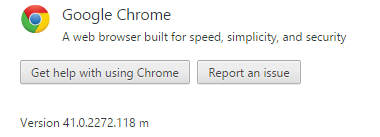
Does not work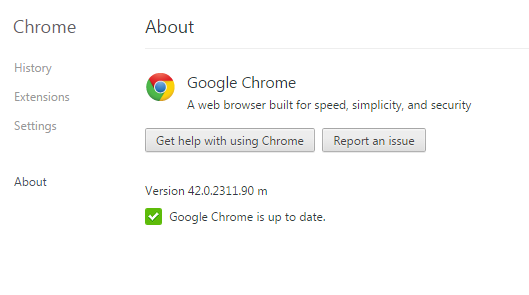
We will update you with further information as soon as we have some.
In the meantime, please do not update your Chrome browser to version 42.0.2311.90 m
OK so looked for answers on rolling Chrome back to a previous version and this is what I found
Can I roll back Google Chrome to a previous version?
No - rollback is not supported.To get to a previous version (which would not be supported by Google), you would need to uninstall your current version, delete every user's saved profile data, and re-install the older version. Users' personal profile data is kept in:On Windows XP: C:\Documents and Settings\<user>\Local Settings\Application Data\Google\Chrome\User DataOn Windows Vista / 7: C:\Users\<user>\AppData\Local\Google\Chrome\User DataThis means users will lose their bookmarks, history, etc., so use this method with extreme caution.
Friday, February 13, 2015
On Sale Now: ACES Display Boards - A Live In-World Customization Toolkit for your Jibe Multiuser Virtual World
Need a powerful system that allows you to easily change in-world surface images/textures, make live modifications, and add customized web-links within your Unity-based Jibe multiuser virtual world?
Check out ACES from ReactionGrid.
 |
| This beautiful 3d store model is made up of many high quality 2d surface images/textures, and I could modify any of them with ACES. |
 |
| Use the in-world menu system to change surface textures and weblinks. |
 |
| I just changed the junk food aisle into one containing healthy fruit using ACES! |
 |
| Everything looks better with Wiener Dogs. |
Questions? Please ask us anything at our Online Service Desk.
Take care,
Chief Learning Officer, ReactionGrid
Thursday, February 12, 2015
Chat Groups for Jibe and it's Free
ReactionGrid now has Public Chat Groups for Jibe!
Setup of Public chat groups in your Jibe Project is easy now!
Public chat groups are set up in two ways.
The first type of chat groups are accessible from anywhere in the Jibe scene, these are accessed by entering a Jibe scene, clicking on the "Online Users" button in the bottom left corner of the screen. Here you will see a new window called "Public Chat Groups" to enter into a group to chat simply click on the talk bubble icon to the right of the group you want to join.

The second type of chat groups are location based, this chat will open when you enter the area designated for this group.

Both chat group styles are not exclusive, you can set location based groups to point to groups listed in the public window too.
Free to those to own Jibe, grab these scripts by submitting a service desk request:
http://metaverseheroes.com
http://metaverseheroes.com
Follow these instructions to Set Your Chat Groups Up:
https://reactiongrid.atlassian.net/wiki/display/KBP/Chat+Groups%3A+How+to+Setup+and+Use+Group+Chat+in+your+Jibe+World
https://reactiongrid.atlassian.net/wiki/display/KBP/Chat+Groups%3A+How+to+Setup+and+Use+Group+Chat+in+your+Jibe+World
Friday, January 30, 2015
ACES: A new system from ReactionGrid that adds live inworld customization to your Jibe 3d multiuser virtual world.
Check out this powerful system from ReactionGrid that allows you to easily change in-world surface images/textures, make live modifications, and add customized web-links within your Unity-based Jibe multiuser virtual world.

More details in this video!
What is ACES?
- ACES is a system that adds user-modifiable display boards to a Jibe world. Any image on the web can be projected onto any display board, and boards can be configured to open any URL in a new browser window.
- The content in an ACES display board can be changed in-situ (within the live published Jibe world) with no work required in the Unity editor.
- All ACES display boards can be changed inworld by any user who has logged in with an account that has administrative level access.
- ACES display boards can also be configured so that any user can “claim” an unused board as their own and then have full admin control over it.
- ACES display boards don’t have to look like boards! Imagine changing the image textures of storefronts, buildings, any surface at all in your Jibe world.
Live demo:
http://demos.jibemix.com
Demo Accounts:
ACES Admin / password
Demo User / demodemo
ACES is available for sale now in ReactionGrid's Online Store!
Take care,
-John "Pathfinder" Lester
Chief Learning Officer, ReactionGrid
Wednesday, January 7, 2015
New Support System - Effective January 19th, 2015
Effective starting Friday January 16th, 2015
ReactionGrid Inc will be utilizing a new ticketing/support system. By this date,
we will no longer be monitoring our old ticketing system and it will be
utilized for archiving purposes only. If you need to retrieve any old tickets
or information, you can navigate to http://metaverseheroes.helpserve.com.
In order to access our new support system, go to this link: https://reactiongrid.atlassian.net/servicedesk/customer/portal/1.
Create an account if you have not already done so, or log into your existing
account to submit a request for assistance. By this Friday, January 9th,
we will point our old ticketing system webpage to our new support system
webpage: https://reactiongrid.atlassian.net/servicedesk/customer/portal/1,
which will make switching over easier and convenient.
In order to create a request with our new support system,
click on one of the 3 categories: “Jibe & Unity3D Assistance”, “Server
Assistance” or “General Questions”. These are the 3 current categories,
although there may be more added later. Enter in a summary, a description of
your request/question, click submit, and we will get back to you as soon as
possible!
Thank you for your attention to this matter and best wishes
to all,
Ashley Pacailler
Accounts Receivable & Customer Support
ReactionGrid Inc
Subscribe to:
Posts (Atom)